
HTML Export
Export your interactive story as an HTML build that works offline or on the web. No server is required for local play.
What is HTML Export?
HTML export creates a build/ folder with index.html and an assets/ folder. The page contains the runtime engine, story scripts, dialogue, logic and variables. Keep the media files in assets/ alongside it when you share the story.
What's Included in HTML Export:
- Complete Runtime Engine: The JavaScript runtime that interprets your story nodes and handles gameplay
- All Story Scripts: Every
.sfefile embedded as JSON data - Global Variables: Initial values for all global variables
- Images: All image assets (PNG, JPG, JPEG, GIF, WebP, APNG) in preserved folder structure, with animated formats playing in the browser
- Audio: All audio files (MP3, WAV) with playback controls
- Characters: Character data including portraits and custom variables
- Your Interface: The project's Default UI - its element tree, its own node graph, its local variables and its animations - plus every User Interface file it places or can spawn
- Fonts: Every font your interface uses, embedded so text renders the same everywhere
- Startup Configuration: Automatically loads your designated startup script
Perfect For
- Easily sharing your interactive stories with anyone
- Publishing on itch.io or hosting on your own website
- Sharing via email, Dropbox, Google Drive, or other cloud storage
- Playing offline (works without internet after download)
- Distributing demos and prototypes
- Game jams and rapid prototyping
Want a Standalone Desktop Game Instead?
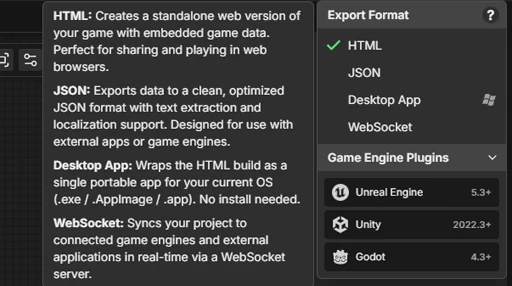
The export menu also offers Desktop App Export, which wraps this same runtime into a ready-to-run game for Windows, macOS or Linux. Your story behaves identically, no browser required.
Export Output
HTML export creates a build/ folder in your project directory containing:
build/
├── index.html           (Your interactive story)
└── assets/             (Assets with folder structure)
    ├── backgrounds/
    ├── characters/
    └── audio/
How to Export
Exporting your story as HTML is quick and straightforward. The editor automatically saves all your work and packages everything into a shareable interactive story.
Export Steps:
- Open your project in StoryFlow Editor
- Ensure you've set a Startup Script via the menu next to the Play button (required for export)
- Click the dropdown arrow on the Export split button in the top-right corner of the editor
- Select HTML as the export format
- Click the main "Export" button
- The editor automatically saves all changed files before exporting
- A notification appears showing export progress
- When complete, click "Show in Folder" to open the
build/directory
Testing Your Export:
- Navigate to
YourProject/build/index.html - Double-click
index.htmlto open it in your default web browser - Your story should start playing from the startup script
- Test all dialogue options, branches, and variable interactions
- Verify that images load correctly
What Gets Bundled
The export walks your whole project for assets, not just the obvious ones. An asset counts as used no matter which layer of the project reaches it:
- Named on a node: a dialogue background or portrait, a Set Background Image, Set Image, Play Audio or Set Audio value
- Stored in a variable: image, character and audio values held by a global variable's default, including inside array variables
- Named on a character: a character file's portrait and its asset-typed character variables
- Used by your interface: an element's image, every brush source on an element (box, container and background brushes, the fill, thumb, track and box parts of the controls and a button's per-state brushes) and every font your text styles use
- Reachable only from a UI script or an animation: an image or font that appears nowhere in the element tree because it is swapped in at runtime by an image Set node (Set Image Source, Set Background Image, Set Fill Image, Set Thumb Image or Set Track Image) or a Set Font Family node, or held by an image keyframe on the animation timeline
Interface Images Are Embedded, Not Linked
Images used by your interface are written into the exported page as data, not just copied into assets/ and linked. That is what makes a 9-slice brush render correctly in a file you double-click straight off disk: a 9-slice frame is composited at runtime, and a browser refuses to read back an image loaded over file://. Embedding the image sidesteps the restriction entirely, so a 9-slice panel looks the same when opened locally as it does when hosted.
Two Clean-up Passes Before Embedding
Your graphs are tidied on the way into the export, in memory only - the files on disk are untouched. Reroute nodes are collapsed, so each wire you routed around the canvas becomes a direct connection the runtime can follow, on both the script canvas and the UI script canvas. And colliding node IDs are re-minted so every node in the exported build is unique project-wide, which matters because the runtime tracks once-only options by node ID. See Node ID Guarantees for the details.
Localization and Data Assets
HTML export includes the translations you entered in the Localization dashboard. In the Export menu, enable Language Picker if you want the built-in selector to appear in the finished game. It is off by default and only appears when the project has target languages. You can also build your own menu with User Interface language nodes. The public StoryFlowRuntime.setLanguage, getLanguage and getLanguages methods are available to custom page code.
Data Asset values and script changes to them work in the exported game. The Save System keeps those changes with a slot, while the player's selected language is stored separately. Images use the Smooth or Nearest scaling choice saved in each image's editor tab, including images used in the User Interface.
Audio Support
The HTML export includes full audio support for both dialogue audio and Play Audio nodes.
Audio Files
- Formats: MP3 and WAV files are supported
- Bundling: All referenced audio files are included in the export
- Playback: Audio plays automatically when triggered by nodes
Runtime Controls
The exported HTML includes audio volume controls:
- Volume Slider: Adjust audio volume during playback
- Mute Toggle: Quickly mute/unmute all audio
- Persistence: Volume settings are remembered
Audio Behavior
- Looping audio continues until stopped
- Reset option on dialogue nodes stops current audio
Sharing Your Story
Once you've exported and tested your HTML story, you can share it with the world. HTML exports work on any platform with a web browser, making distribution incredibly flexible.
Publishing to itch.io
itch.io is a popular free platform for indie creators to share interactive stories and browser-based content. Upload your build/ folder as a ZIP file, set the project type to "HTML", and mark it to be played in the browser.
Hosting on Your Own Website
You can host your HTML export on any web server or static hosting platform.
GitHub Pages (Free):
- Create a GitHub repository for your story
- Upload the contents of the
build/folder to the repository - Go to repository Settings → Pages
- Enable GitHub Pages from the main branch
- Your story will be available at
https://username.github.io/repository-name/
Other Hosting Options:
- Netlify: Drag-and-drop deployment, free tier available
- Vercel: Fast hosting with automatic HTTPS, free for personal projects
- Your Web Server: Upload via FTP to any hosting provider
- GameJolt: Interactive content distribution platform similar to itch.io
Sharing Directly
For quick sharing without hosting, you can distribute the HTML file directly:
- Email: Zip the
build/folder and send as attachment (if under email size limits) - Cloud Storage: Upload to Google Drive, Dropbox, or OneDrive and share the link
- USB Drive: Copy the
build/folder for offline demos
Test the Shared Build
You can open the exported index.html directly for an offline check. Before sharing it widely, also test the copy on your chosen hosting platform to make sure the whole story works as expected.
Customization Options
How an exported game looks is entirely up to you: the export renders your project's Default UI, the User Interface file you built in the editor. Colors, fonts, layout, images, the dialogue box itself and anything you added around it all come across exactly as you designed them, because the editor and the exported game share one styling engine.
What carries over from the editor:
- Your layout: the whole element tree, with anchoring so it holds together at any window size
- Your styling: colors, per-state colors, image brushes including 9-slice, padding, borders, text outline and shadow
- Your fonts: embedded in the export, so nothing falls back to a system font
- Your interactions: the interface's own node graph, its animations and any interfaces it spawns at runtime
Design It in the Editor, Not in the Export
There is no need to hand-edit CSS in the exported file to restyle your game - and doing so is fragile, because the next export overwrites it. Open your Default UI in the editor, change it there and export again. If you have not set a Default UI, the export falls back to the editor's built-in interface so the game is still playable.
Technical Details:
- Supported Image Formats: PNG, JPG, JPEG, GIF, WebP and APNG. Animated GIF, WebP and APNG images play in the exported game
- Browser Compatibility: All modern browsers (Chrome, Firefox, Safari, Edge)
- Responsive Design: Works on desktop, tablet, and mobile
- No Server Required: Pure client-side JavaScript execution
- Clean Start: The loading overlay stays up until the first scene has actually painted, so the game no longer flashes a dark empty frame before it begins
Next Steps
Learn about JSON Export for integrating your stories with game engines, or WebSocket Sync for pushing changes to connected applications in real time.