Unity Branching Narrative & Dialogue Plugin
A free open-source package for branching narrative and dialogue in Unity, powered by StoryFlow Editor.
Build branching narratives in Unity without nested if/else chains in your game scripts. Import StoryFlow Editor projects with dialogue, characters, Data Assets and translations, then manage variables, save progress and sync edits live. Built for RPGs, visual novels and adventure games.
Features
- Native C# runtime with full event-driven API
- Import and run StoryFlow Editor projects directly
- Story graph support for branching, loops, arrays and variables
- Character system with portraits, names, and per-character variables
- Data Assets and translated dialogue imported with the project
- Audio-driven lip sync for character face blendshapes
- Built-in audio playback with looping and volume control
- Save and load system with slot-based persistence
- Live Sync with the StoryFlow Editor via WebSocket
- Default uGUI dialogue UI with full customization support
- Free and open-source UPM package

Example Projects
You can download, play and inspect the examples inside Unity, but editing the story requires the StoryFlow Editor app.
 +
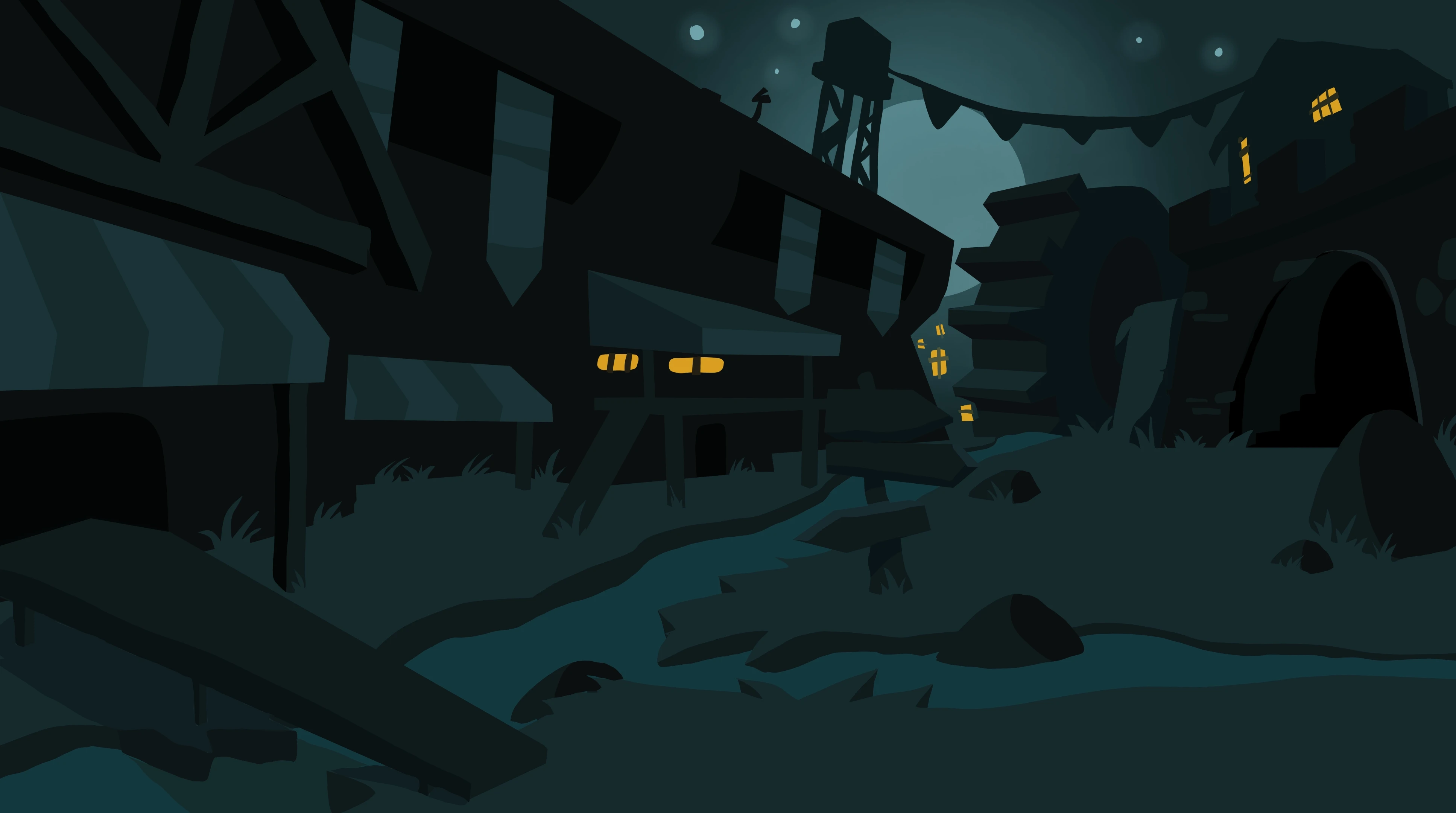
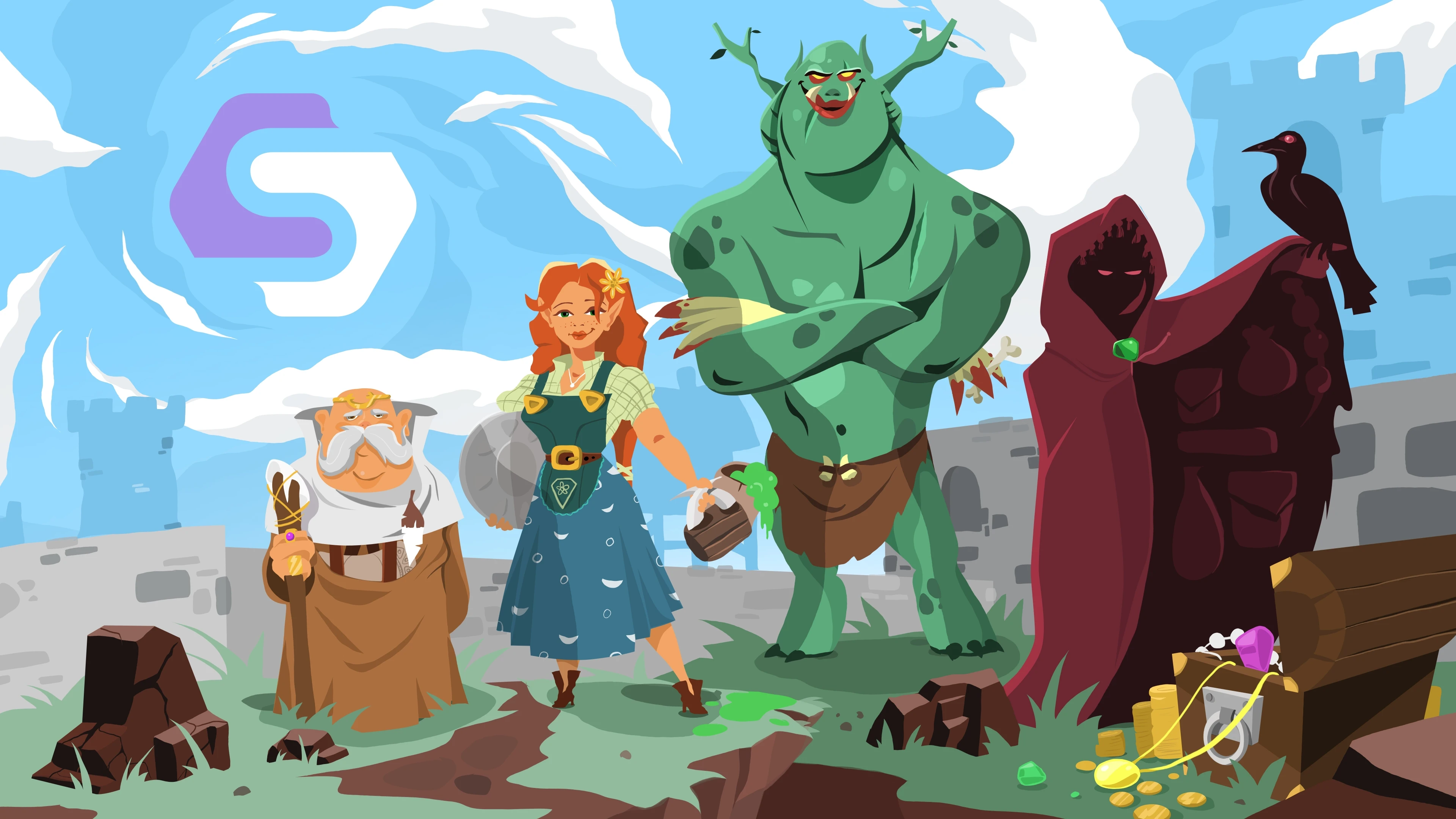
+ The Beast of Millhaven
A complete visual novel with RPG mechanics: character creator, merchant shop with drag-and-drop inventory, and a cave troll battle. The story, combat math and prices are authored visually in StoryFlow Editor and ship pre-synced - the interface is plain C# reacting to the plugin's events and dialogue tags.
The Unity recreation is in the works. Like the Godot version, it will include a project you can open in StoryFlow Editor. Edit a line, request a sync and restart the dialogue to test it in Unity.
Building a branching narrative in Unity
Almost every Unity project grows its own dialogue system, and almost every one of them follows the same curve. A switch on a conversation ID is fine for a prototype. Then choices need to persist, a scene has to react to something three hours back, and the whole thing becomes a state machine that nobody planned and nobody wants to touch.
The StoryFlow Editor package moves the branching out of your MonoBehaviours. You author the narrative visually in StoryFlow Editor and import its project export into Unity. The C# runtime resolves branching, conditions and variables while your scripts subscribe to events and draw UI.
Three steps to your first conversation
- Install via UPM. Add the package through Unity's Package Manager. Unity 2022.3 LTS and later, Built-in, URP and HDRP, IL2CPP and Mono all supported.
- Import your project. Export JSON from StoryFlow Editor and select the build folder in Unity, or connect with Live Sync.
- Call
StartDialogue(). On aStoryFlowComponentfrom any MonoBehaviour. The default uGUI dialogue widget renders it, or implementIStoryFlowDialogueUIfor your own.
What the runtime handles
The runtime handles story graph nodes for choices, conditions, loops and arrays. It also imports characters, Data Assets and translations, plays audio and exposes slot-based save and load. Its lip sync component drives blendshapes on character face meshes.
Because the runtime is event-driven, dialogue state is available anywhere in your project without coupling your UI to the narrative data. Live Sync can update imported script assets during Play mode. Restart the dialogue to read changed lines and restart Play mode after changing shared defaults. See the Live Sync guide for the workflow.
If your existing dialogue code has already turned into nested conditionals, the branching dialogue architectures guide walks through the five patterns that actually scale. For the wider category, see the branching narrative tool overview.
Frequently Asked Questions
Install the StoryFlow Editor Unity package via UPM, import a JSON project export from StoryFlow Editor and call StartDialogue() on a StoryFlowComponent. Branching logic, character display, choices and variables are handled by the C# runtime, so the branching narrative shows up on screen without nested if/else in your game scripts. The default uGUI dialogue widget renders it, and you can swap that for a custom UI by implementing IStoryFlowDialogueUI.
Yes! The Unity package is completely free and open-source. You can use it in any project, including commercial games, without paying any licensing fees for the package itself.
Yes, the package is a runtime for projects created with StoryFlow Editor. Create your narrative in the editor, then import its JSON project export or use Live Sync. Check our pricing page for editor options.
Follow the Installation guide to set up the package, then work through the Quick Start tutorial to get your first dialogue running in under 10 minutes.
The package supports Unity 2022.3 LTS and later. It uses standard Unity APIs and works with both the Built-in Render Pipeline and URP/HDRP. IL2CPP and Mono scripting backends are both supported.
Absolutely! The package is released under the MIT license. You're free to use it in commercial projects, modify the source code, and distribute games that include it.
Yes. The package provides a default uGUI-based dialogue UI you can use out of the box, but you can also extend the base StoryFlowDialogueUI class or implement the IStoryFlowDialogueUI interface for fully custom UIs. The runtime broadcasts all dialogue state via C# events, so you have complete flexibility.
Yarn Spinner and Ink are scripting languages: branching dialogue lives in text files that a runtime interprets. Pixel Crushers' Dialogue System is a paid Unity-only asset with its own in-editor node interface. StoryFlow Editor sits between them: the branching narrative is authored visually in a standalone editor, then played back by a free open-source C# runtime. Writers can edit the story without opening Unity, export the same project for Unreal Engine or Godot and sync updates directly into Unity. If you want dialogue authored in text, Yarn or Ink is the better fit.
Join our Discord community where you can ask questions, report bugs, and connect with other developers.
Yes, we're committed to maintaining and improving the package alongside the StoryFlow Editor. As an open-source project, the community can also contribute features and improvements.
Stay Updated
Get notified about plugin updates, new features, and tips for integrating StoryFlow into your projects.
We respect your privacy. Unsubscribe at any time.